Master Twitter Analytics as X Redefines Engagement

Wouldn’t it be amazing to finally crack the code of viral tweets? Most users only post, wait and when it goes viral they wonder how it happened. Why did one tweet soar while another sank without a trace? The answer lives inside your Twitter analytics.
In this article we touch on what those numbers really mean, how to read and analyze insights and how to use it to your advantage. By the end you will know which metrics show the real engagement and how top U.S. brands use these data to structure their every post.
We’ll move from dashboard basics to real-world strategies, plus insider tricks that drive measurable growth.
What Is Twitter Analytics (and Why It Still Matters on X)?
Twitter Analytics is a free, built-in tool on the X platform that provides data on your account’s performance. By tracking metrics like impressions and engagements, It helps the users to get an idea on how their tweets or posts and profiles are performing. This helps the users make a data informed decision to improve their social media strategy.
Even after Elon Musk bought Twitter and transformed it into X, these insights remain the backbone of engagement strategy. X Analytics measures the same data but in a refreshed interface, making it easier to spot trends and adjust your strategy quickly.
Twitter analytics offers insights that no other tool provides natively. According to The Social Shepherd around 82% of marketers rely on Twitter to understand their audience.
Let’s compare metrics focus and accessibility across different platforms: Twitter, Instagram, and LinkedIn to show where analytics works best:
| Platform | Metrics Focus | Accessibility | Best For |
| Twitter/X | Impressions, Engagement Rate, Link Clicks, Profile Visits, Follower Growth, Conversions | Free, built-in, desktop & mobile dashboards | Real-time audience engagement, trend spotting, campaign performance |
| Likes, Comments, Saves, Shares, Impressions, Reach, Follower Demographics | Free for professional accounts, mobile-focused, desktop limited | Visual content performance, influencer campaigns, brand awareness | |
| Post Views, Clicks, Engagement Rate, Follower Demographics, Conversion Tracking | Free for pages, more detailed in LinkedIn Analytics dashboard | B2B audience insights, thought leadership, lead generation |
How to Access and Navigate Twitter Analytics Like a Pro
You can check your Twitter analytics on both desktop and mobile.
On desktop:
Log in to your account → click “More” → select “Analytics”
On mobile:
Open the app → tap your profile → find “Professional Dashboard” → access your data
Once inside, you’ll see several dashboard tabs:
- Tweet Activity: View impressions, engagements, and link clicks for each tweet.
- Audience: Learn who follows you, their interests, and demographics.
- Events: Track scheduled posts and campaign performance.
- Conversion Tracking: Monitor how your tweets drive sales or sign-ups.
Key features in each section:
- Quick performance summaries
- Trend graphs
- Exportable data
- Filters for date ranges
- Top-performing tweets
Helpful Idea: Export your analytics data monthly, it helps track growth trends and spot long-term patterns.
If you can’t see analytics, make sure your account is set to professional and verify your email.
Desktop vs Mobile Analytics Features:
| Feature | Desktop | Mobile |
| Full dashboard view | Yes | Limited |
| Export data | Yes | Limited |
| Event tracking | Yes | Partial |
| Conversion tracking | Yes | Partial |
The Metrics That Actually Matter
Tracking every number on Twitter can feel overwhelming. You see likes, retweets, clicks, impressions, and more. But not all numbers tell the full story. Focus on what truly drives engagement and growth.
Engagement rate:
It shows how your followers interact with each post. This is the metric that shows the real impact of your content. Calculate it with this simple formula:
(Total engagements % Total impressions) × 100
Impressions vs Reach:
Impressions count views, while reach counts unique users. Both are important, but reach shows your true audience size.
Other metrics to track:
- Profile visits
- Conversion tracking
5 metrics to review weekly:
- Engagement rate
- Impressions
- Reach
- Link clicks
- Follower growth
Goal-based Metric Focus:
| Goal | Metrics | Why it matters |
| Increase awareness | Impressions, Reach | Shows visibility |
| Drive traffic | Link clicks | Measures website visits |
| Build community | Engagement rate | Shows interaction quality |
| Grow audience | Follower growth | Measures expansion |
| Generate leads | Conversion tracking | Links activity to results |
Benchmark: U.S. businesses average 1 to 1.7% engagement rate.
These stats will tell you which posts succeed, which ones need improvement and how you can focus your efforts to achieve measurable results. This way you can both improve your content performance and save your time.
Reading Between the Numbers: Turning Analytics into Action
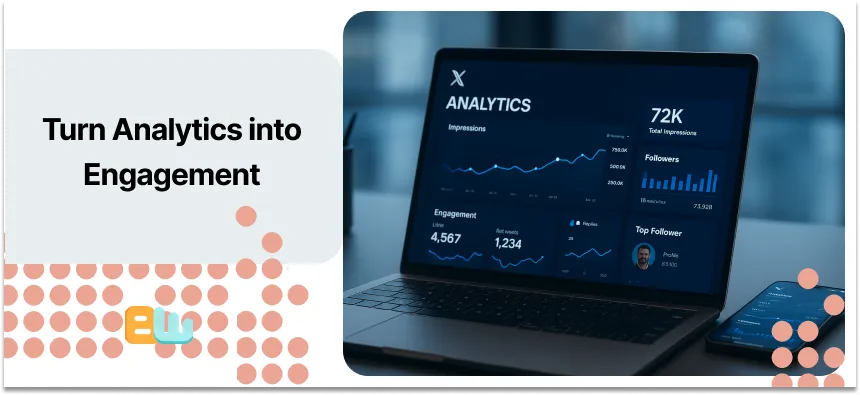
Numbers alone won’t grow your audience. You need to interpret them and take action. Watch for spikes or drops in engagement. Ask yourself why a tweet soared or failed. Connect your analytics to tweet type, timing, and audience behavior.
Use this simple framework to act on insights:
- Review: Look at recent performance and trends.
- Reflect: Ask what worked and what didn’t.
- Refine: Adjust your content, timing, or format.
- Repeat: Test again and track improvements.
Metric Trend → Likely Cause → Action Step:
| Metric Trend | Likely Cause | Action Step |
| Engagement drops, impressions rise | Weak call-to-action | Strengthen CTA in tweets |
| Link clicks fall | Poorly timed posts | Post during peak audience hours |
| Follower growth slows | Low engagement | Experiment with tweet formats |
The best practice is to try A/B testing so you can see what works best for your audience and what is the best approach to garner the best result. For example, posting midday on weekdays often drives higher engagement for U.S. audiences.
Advanced Tips, Hidden Features & Common Pitfalls
Once you master the basics, you can take your Twitter analytics further. Export your data as a CSV to combine several months. Track campaign hashtags manually to see which posts spark interest. Watch audience shifts over time to adjust content. Hidden features like event tracking and conversion insights give you a deeper view of your results.
Avoid common pitfalls that slow growth:
- Obsessing over vanity metrics
- Ignoring negative signals like drops in clicks
- Comparing your account to irrelevant competitors
Pitfall and How to Fix them:
| Pitfall | Fix | Why it Works |
| Chasing likes over engagement | Focus on engagement rate | Shows true audience interaction |
| Ignoring click drop-offs | Analyze low-performing tweets | Helps identify weak content or timing |
| Comparing to unrelated accounts | Benchmark against similar accounts | Provides realistic performance targets |
Try to avoid pitfalls and apply the aforementioned tips so your data can work for you and help increase engagement rate.
From Data to Brand Storytelling: The Strategy Layer
Numbers alone don’t create a brand. You need to turn analytics into a narrative that connects with your audience. You can use these insights to shape your brand voice to its best form. Let’s say 70% of your audience loves your behind the scenes tweets and posts, so make sure to post them on a weekly basis.
For example, if 70% of your audience loves behind-the-scenes tweets, make it a weekly ritual.
3 ways to turn analytics into brand storytelling:
- Identify top-performing content → Highlight it in your brand voice
- Track audience interests → Create posts that resonate with their passions
- Monitor engagement trends → Adjust tone, timing, and format for stronger connections
| Data Insight | Storytelling Move |
| High engagement on behind-the-scenes content | Post weekly BTS stories |
| Audience clicks product links | Showcase product benefits in posts |
| Video tweets get shares | Produce short video series |
By humanizing numbers, you craft content that feels real. Your tweets stop being just posts and start telling your brand story. This approach improves engagement and builds lasting audience trust.
Conclusion: Make Twitter Analytics Your Competitive Edge
You now know how to read, interpret and work with your Twitters / X analytics.
You now understand:
- Which metrics matter
- How to spot trends
- How to turn data into strategy
Now let’s act on it, put your knowledge to good use and track your data to find which ones need improving. Always keep learning about the new trends and benchmark regularly.
You can grow your engagements, reach the right audience and make smart content decisions by using this data. These analytics are not simple numbers, they are your competitive advantage that can propel you forward.
FAQ: Master Twitter Analytics
Why can’t I see Analytics on Twitter?
You need a professional account. Verify your email and log in to access analytics.
How do you check your Twitter score?
Twitter doesn’t provide a single “score.” Use engagement metrics like likes, retweets, and impressions instead.
Where is Twitter Analytics now?
Twitter Analytics is now part of X Analytics. You can acess it through the professional dashboard on desktop or mobile.
How do I see Twitter analytics?
Log in, go to “More” on desktop or “Professional Dashboard” on mobile. Select “Analytics” to view insights.
What has happened to Twitter Analytics?
After Twitter was transformed into X, the analytics was also rebranded. The data and the metrics are the same but the interface is different.
